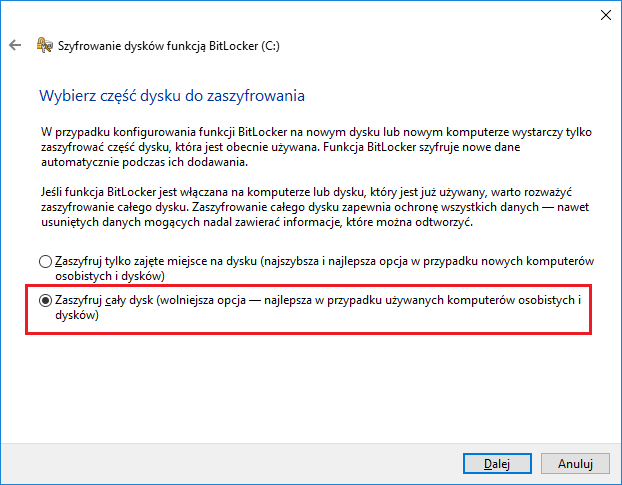
This guide provides step-by-step instructions on how to enable the BitLocker feature on Windows operating systems, as well as how to require a PIN upon computer startup.
Select where to save the recovery key. We recommend the Print the recovery key option. The printout should be stored in a secure location, inaccessible to unauthorised individuals.
Requirement to enter PIN after turning on the computer
Run Edit Group Policy
Click Start.
Search for the Edit group policy (Group Policy Editor) option.
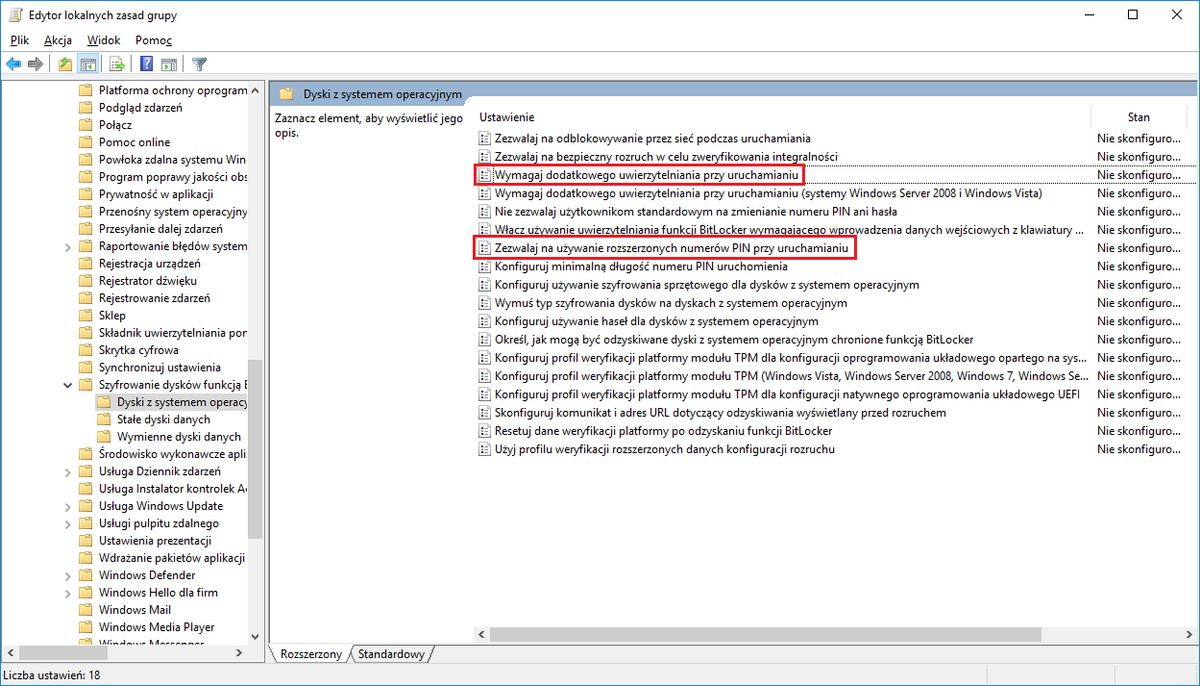
In the opened window, navigate to: Computer Configuration → Administrative Templates → Windows Components → BitLocker Drive Encryption → Operating System Drives → Require additional authentication at startup, and enable this option.
Set a PIN for the drive. The PIN should meet the requirements described in the Passwords and Password Managers document. The password can be set from the Start menu → Command Prompt (right-click the icon and select Run as administrator) using the following command: manage-bde -protectors -add C: -TPMAndPIN